Choose where you want prices to appear
| Display | Good for | Consider |
|---|---|---|
| Apple Stocks app | Opening a symbol for charts, watchlists and news | A separate research window |
| Stocks widget | Occasional checks on the desktop or in Notification Center | Desktop widgets can be covered by work windows |
| Native menu bar app | A quote or shortcut among other menu bar items | Limited menu bar space; features vary by app |
| Stock Island | A compact stock and spot crypto watchlist around the notch or at the top of a display | It is a ticker, without order execution or portfolio accounting |
For the built-in option, Apple's Stocks user guide explains searching for symbols and maintaining watchlists. For installation and cost differences between third-party tools, see our Mac stock app comparison.
Set up a Stock Island watchlist
- Check your Mac and install the app. Stock Island supports macOS 13 or later on Apple silicon and Intel Macs. Use the Mac App Store link on this page. All features are free for 7 days, followed by an optional one-time unlock.
- Choose the relevant market data sources. In the app settings, enable the markets you want to follow. Available sources cover A-shares, Hong Kong, US, UK and Korean stocks, plus spot crypto.
- Open Add to Watchlist. Expand the island and use its add button. Choose Stocks and the correct market, or choose Crypto. Enter the symbol or complete spot pair, check the preview, then choose Add to Watchlist. Confirm the listing and quote currency before adding it.
- Start with a short list. Three to five instruments is a practical workday starting point. The app supports up to 100; a longer list is useful only if you regularly check it.
- Choose a display style. Open the island’s settings menu and choose Display mode. Regular mode shows familiar quotes; Stealth mode uses code-like lines; Pixel mode uses a dot-matrix style. Choose the price-change color convention you prefer.
You do not need a Stock Island account. Your watchlist and display preferences stay on your Mac. This does not connect a brokerage account or import your holdings.
Read the compact ticker, then hover for your list
On a MacBook with a hardware notch, the compact island sits around the camera area. Move your pointer onto it to expand the watchlist; move away to let it fold back. On a Mac or external display without a notch, Stock Island uses a compact floating ticker at the top.
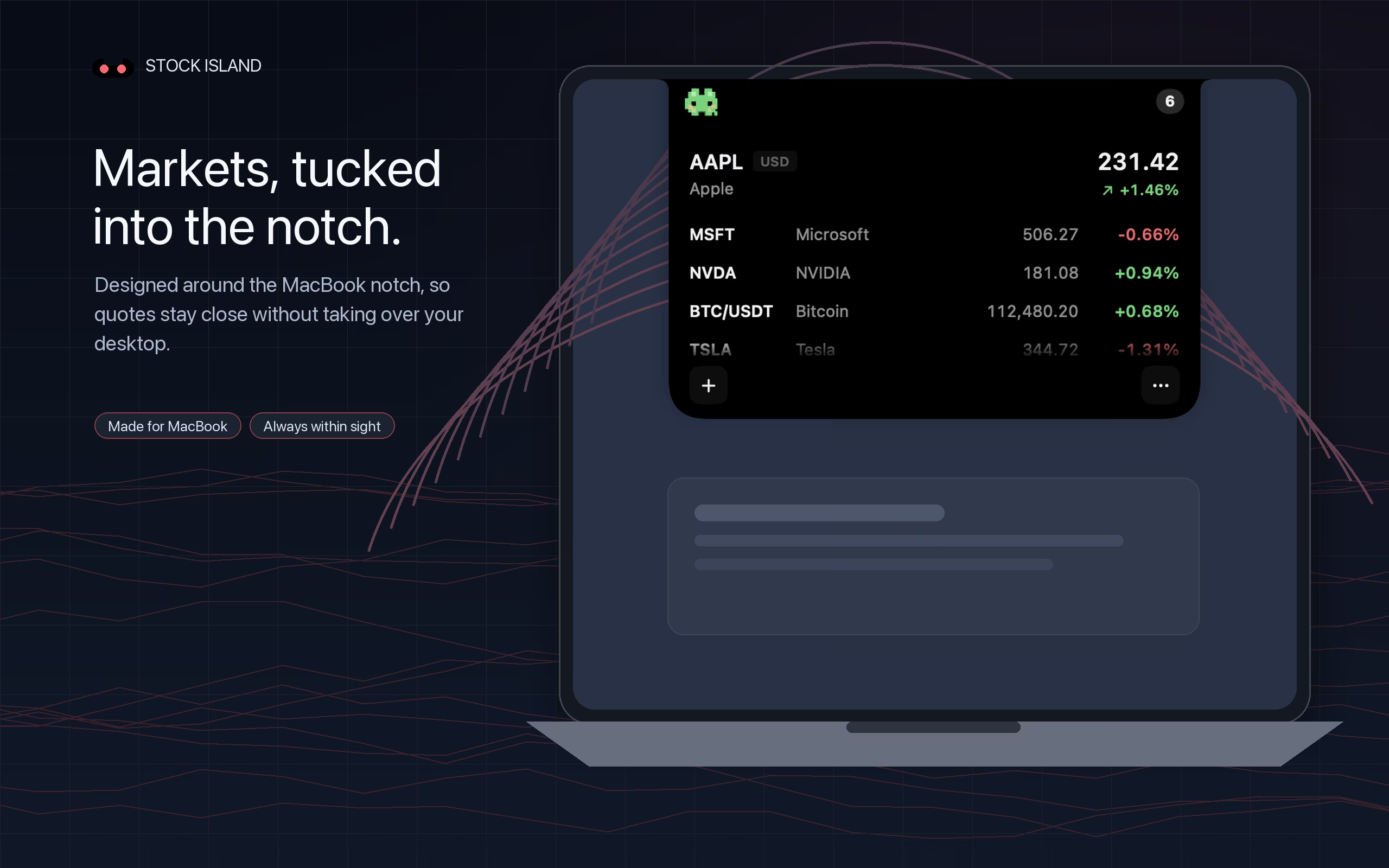
Stock Island uses the notch or a floating display. It is different from a native quote item inside the macOS menu bar. If that placement is essential to you, compare the menu bar options before choosing.
Automatic refresh does not guarantee real-time prices
A shorter refresh interval requests data more often; it does not remove an exchange or provider delay. Quote availability depends on the instrument, market session, network and source. Spot crypto can use streaming updates while the island is expanded, when the provider and network support them.
If a value looks stale, check the symbol and market, then compare the source with a broker or exchange. Report persistent problems with the symbol, app version and time of observation. Quote and refresh support explains what to include.
Check compatibility, purchasing and sharing
Use the support page for compatibility and display questions, and trial and purchase help for App Store billing. Before sharing your screen, close the ticker or share only the intended app window and check the preview. Stealth Mode changes the visual style and can still appear in recordings or screen shares.