How to add a Stocks widget on Mac
On the desktop
- Control-click the desktop wallpaper and choose Edit Widgets.
- Search for Stocks in the widget gallery and choose a layout and size.
- Click the widget to add it, or drag it to a desktop position. Click Done when finished.
In Notification Center
- Click the date and time in the menu bar to open Notification Center.
- Choose Edit Widgets at the bottom, find Stocks and add your preferred layout.
- Reorder the widgets if needed and click Done.
These are Apple’s current documented paths. Older macOS versions may offer different locations or layouts; use the version selector in Apple’s widget guide for your Mac.
Choose a stock symbol or watchlist
Apple describes Symbol widgets for a selected instrument and Watchlist widgets for a list. Control-click the installed widget and choose its edit command, then select the available symbol or watchlist options. The editable fields depend on the layout and system version.
For a watchlist layout, first organize the list in the Stocks app. Apple Stocks already supports watchlists; you do not need another app just to choose stocks. Apple’s Stocks guide explains the available types and customization.
To resize or remove a widget, use its Control-click menu. Start with a small list of instruments you actually check rather than filling the desktop with quotes.
When the stock widget is hard to see beside your work
A desktop widget belongs to the desktop. If a document or browser covers it, Apple recommends clicking the wallpaper to reveal the desktop. Notification Center is another option, but you need to open it to check the widget. This is a difference in viewing workflow, not a missing watchlist feature.
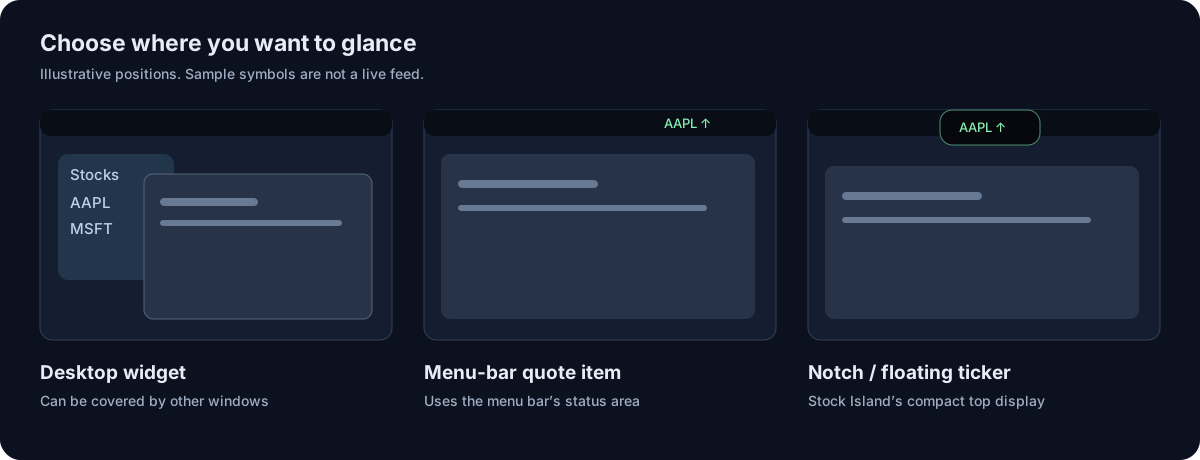
For repeated checks while writing or coding, a compact top display may suit you better. Stock Island shows a small quote around the MacBook notch and expands its watchlist on hover. On a notchless display, it uses a top floating position. It is not a desktop widget or a native menu-bar quote item.
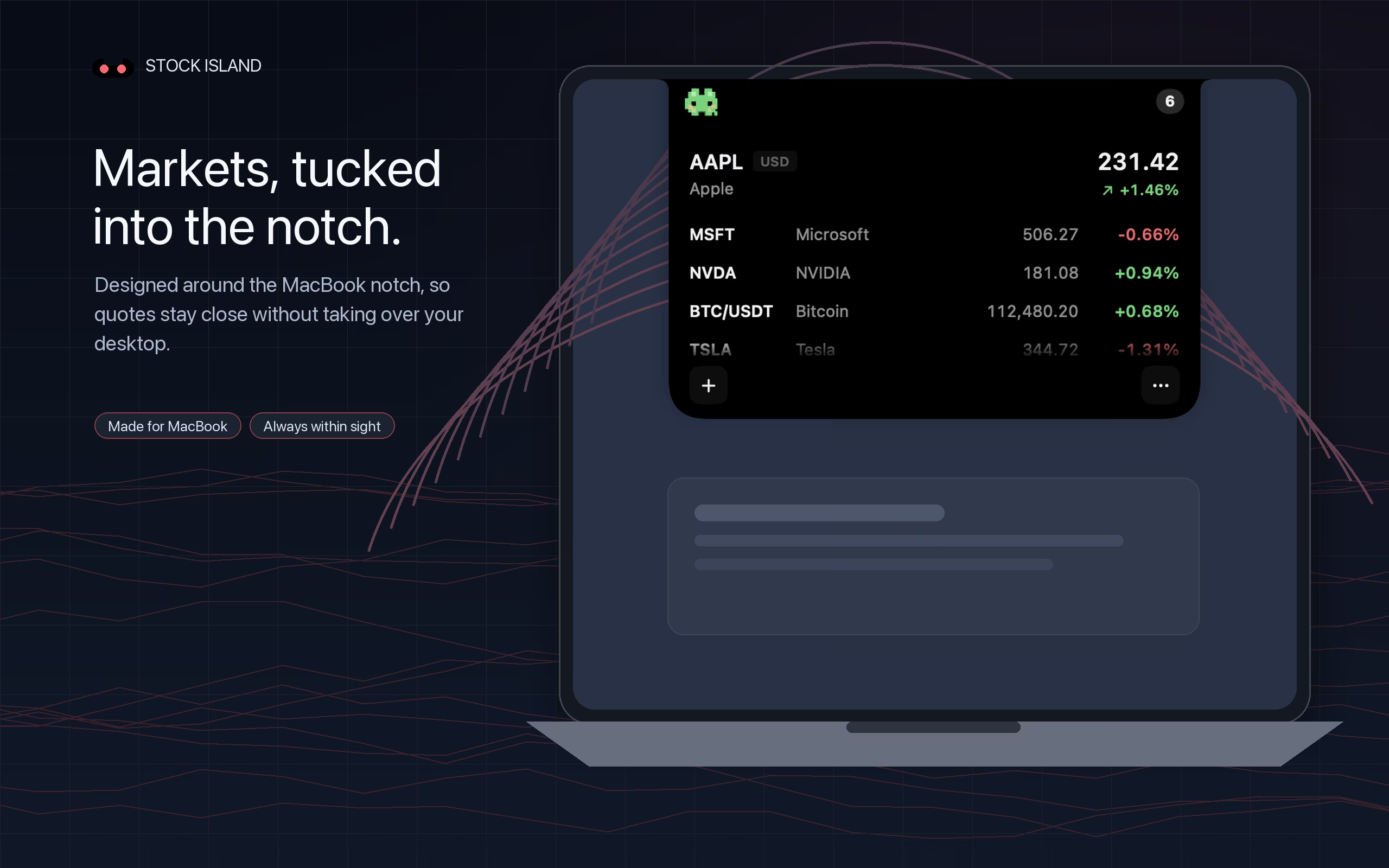
Check the notch and display guide before relying on any particular full-screen, multi-display or screen-sharing behavior.
Apple Stocks vs Stock Island: compare the workday task
Apple Stocks and Stock Island can serve different steps of the same workflow. Research a company in Stocks, then use a compact ticker if you want a quote near your work between research sessions.
| Your task | Apple Stocks or its widget | Stock Island |
|---|---|---|
| Read charts and company news | Use the Stocks app’s research window | Keep a separate research tool; Stock Island displays quotes |
| Check a price occasionally | The included widget may be enough | A paid unlock may not be necessary for this task |
| Glance beside a document or editor | Reveal the desktop or open Notification Center when needed | Compact notch or floating quote; hover for the watchlist |
| Try different quote presentations | Choose the widget layout available on your macOS version | Regular, Pixel and Stealth views |
| Choose without another purchase | Already included with macOS | 7-day full-feature trial, followed by a one-time unlock |
Keep Apple Stocks if its current workflow answers your needs. Consider an alternative when you can name a specific viewing task that would improve. Switching tools does not guarantee a fresher or more accurate underlying quote.
For more choices, compare six Mac stock tools. If a notch-based display is your priority, see TickerNotch vs Stock Island.
If the Stocks widget is not updating
First compare the same symbol, exchange and currency in the Stocks app and your quote source. A stale or different value can involve the upstream data, the widget display or the selected instrument. Market sessions and delayed quotes also affect what you expect to see.
If the app and source are also stale, changing the widget cannot establish a fresh source price. For persistent issues, use Apple’s support information and include the symbol, system version and when it happened. Stock Island also depends on third-party feeds; switching apps is not a guaranteed fix for a provider outage.
Choose by the way you want to check a price
- Occasional desktop checks: Apple’s included widget may be enough.
- Charts and news: keep the Stocks app or your preferred research platform.
- Actual quotes in the menu bar: compare native menu-bar tools.
- A compact glance near your work: try Stock Island’s existing notch or floating display, with stocks and supported spot crypto together.
Stock Island requires macOS 13 or later on Apple silicon or Intel. Its full-feature trial lasts seven days; unlocking is a one-time purchase without a subscription or automatic charge. It is for price awareness, not trade execution or portfolio accounting.
Compare the options and their cost models, or follow the Stock Island setup guide.